Google Maps for Salons: 8 Easy Steps to Get Found
The PocOS team · October 21, 2026 · 7 min read
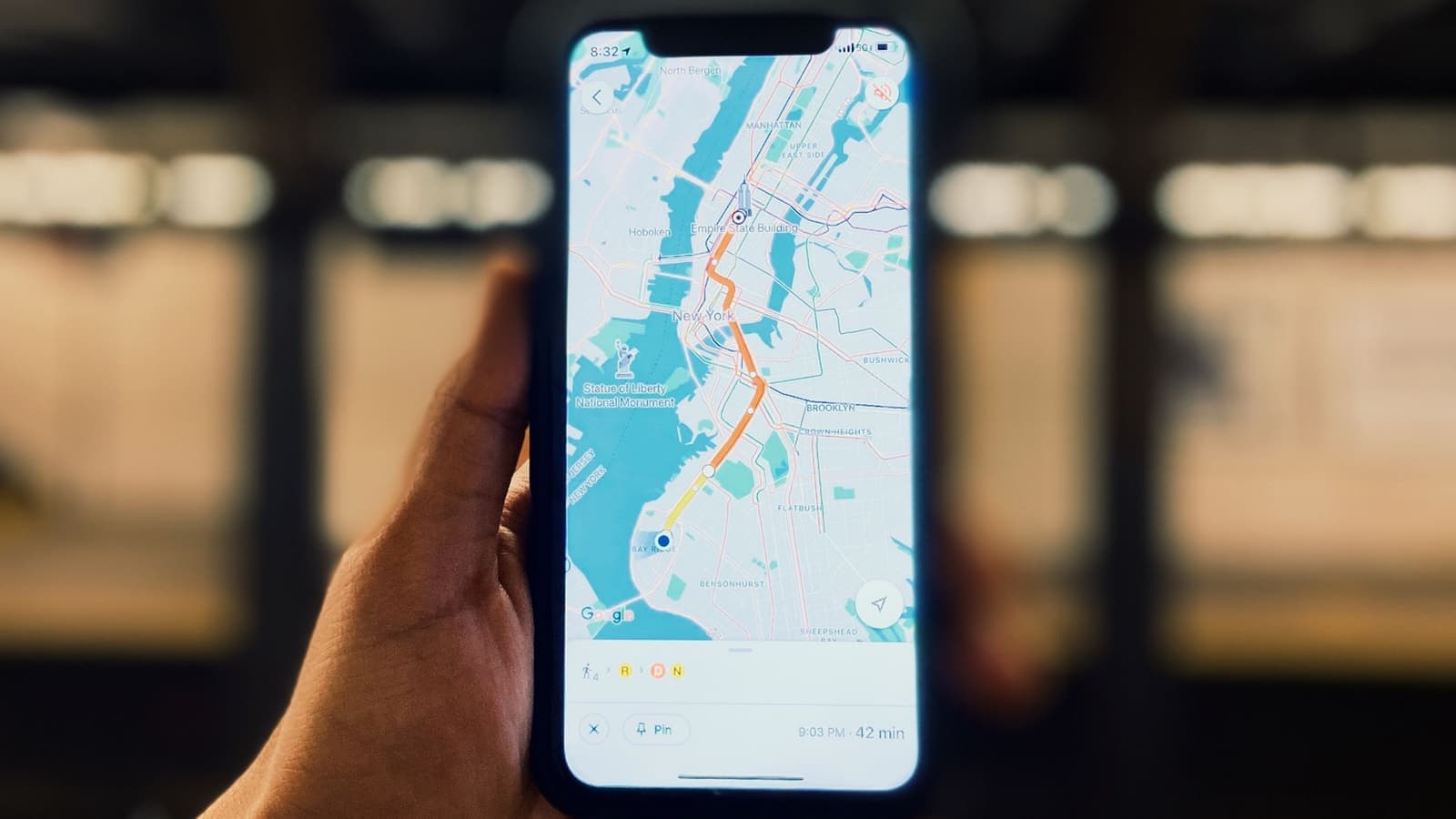
Think about the last time you needed a plumber, a dentist, or a place for dinner. You probably typed "near me" into Google. Then you picked one of the first places on the map.
Your clients do the same thing when they need a haircut, a manicure or a massage.
The listing they see is called your Google Business Profile. It shows up in Google Maps and in Google Search. It is free. For most local businesses it is one of the best marketing tools they have. But many owners set it up once, in a hurry, and never look at it again.
This guide has eight steps to fix that. Set aside about one hour. You do not need any tech skills.
How Google picks who to show
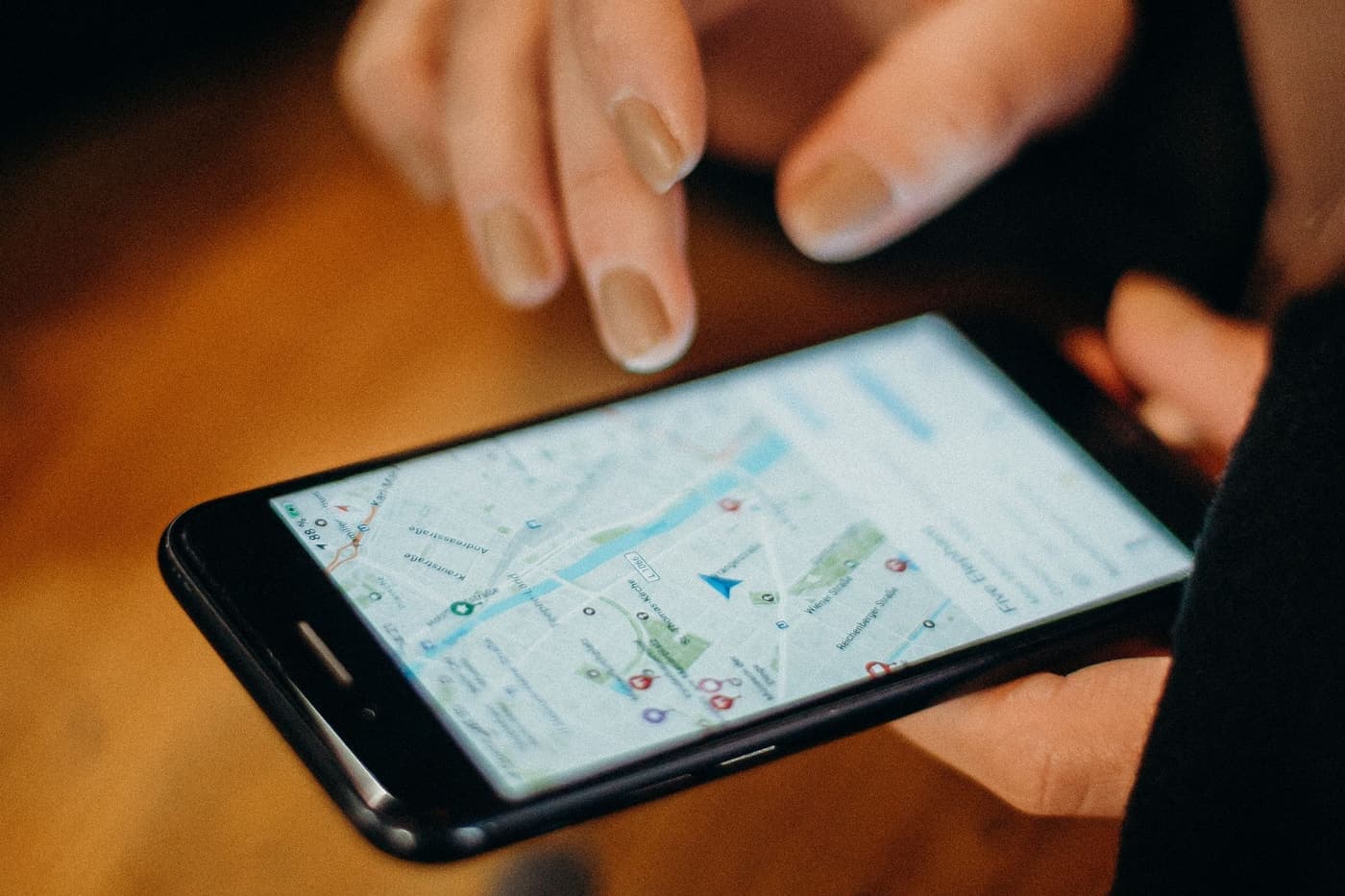
Google says three things decide who shows up:
- Match: how well your profile fits what the person typed
- Distance: how close you are to the person
- Fame (Google calls it prominence): how well known and trusted you are, including your reviews and how much people talk about you online
You cannot move your salon. But you can do a lot about the other two. A full, active profile with good reviews helps with both.
Step 1: Claim your profile and prove it is yours
Search for your business name on Google or Google Maps. Be signed in to a Google account. If a listing exists, you will see a way to claim or manage it. If not, you can add one.
Google will ask you to prove that you run the business. It may use a phone call, an email, a video, or a postcard. Follow the steps and keep your proof.
Two tips that save you trouble later:
- Use a Google account that belongs to the business. Do not use one that belongs to one employee. If that person leaves, you could lose access.
- Add a second owner or manager as a backup.
Step 2: Pick the right main category
This is the most important setting, and it is easy to get wrong.
Your main category tells Google what kind of business you are. For example: Hair salon, Nail salon, Barber shop, Day spa or Massage therapist. Pick the one that matches the main thing you do. Then add a few extra categories for your other services.
Do not pick a popular category if it is not really you. A nail studio listed as a hair salon will show up for the wrong searches. It will also let down the people who find it.
Step 3: Get the basics exactly right
Fill in every basic box, and check each one twice:
- Business name: the same as on your sign. Do not add extra words like "Best Cheap Haircuts". That breaks Google's rules, and your profile can be shut down.
- Address and phone number: the same everywhere. Match your website, Instagram, Facebook and every other place you are listed.
- Website: link to your site or to your online booking page.
- Opening hours: include holidays. Use special hours for days that are different. Nothing upsets a client more than a closed door that Google said was open.
If you travel to clients and do not have a shop, you can hide your address and show the area you cover.
Step 4: List your services, with prices
Most people want to know two things before they call: what do you do, and about how much does it cost?
Add your services. Give each one a short note and a price (or a "from" price). Plain words beat fancy names. "Women's haircut, 45 minutes, from 40" is clearer than "The Signature Experience."
Keep this list the same as your real menu. An old price on Google leads to a small argument at the till.
Step 5: Add a booking link
A phone number alone loses people. Many will not call, especially in the evening. They will not wait until morning, either. They will book with someone they can book with right now.
Add a link to your online booking page. Then a client can go from "I found you" to "I'm booked" in a minute. Any online booking tool will do. If you use PocOS, every business gets a public booking page that you can link here. Wherever you add the link, tap it on your own phone to make sure it works.
Step 6: Show real photos
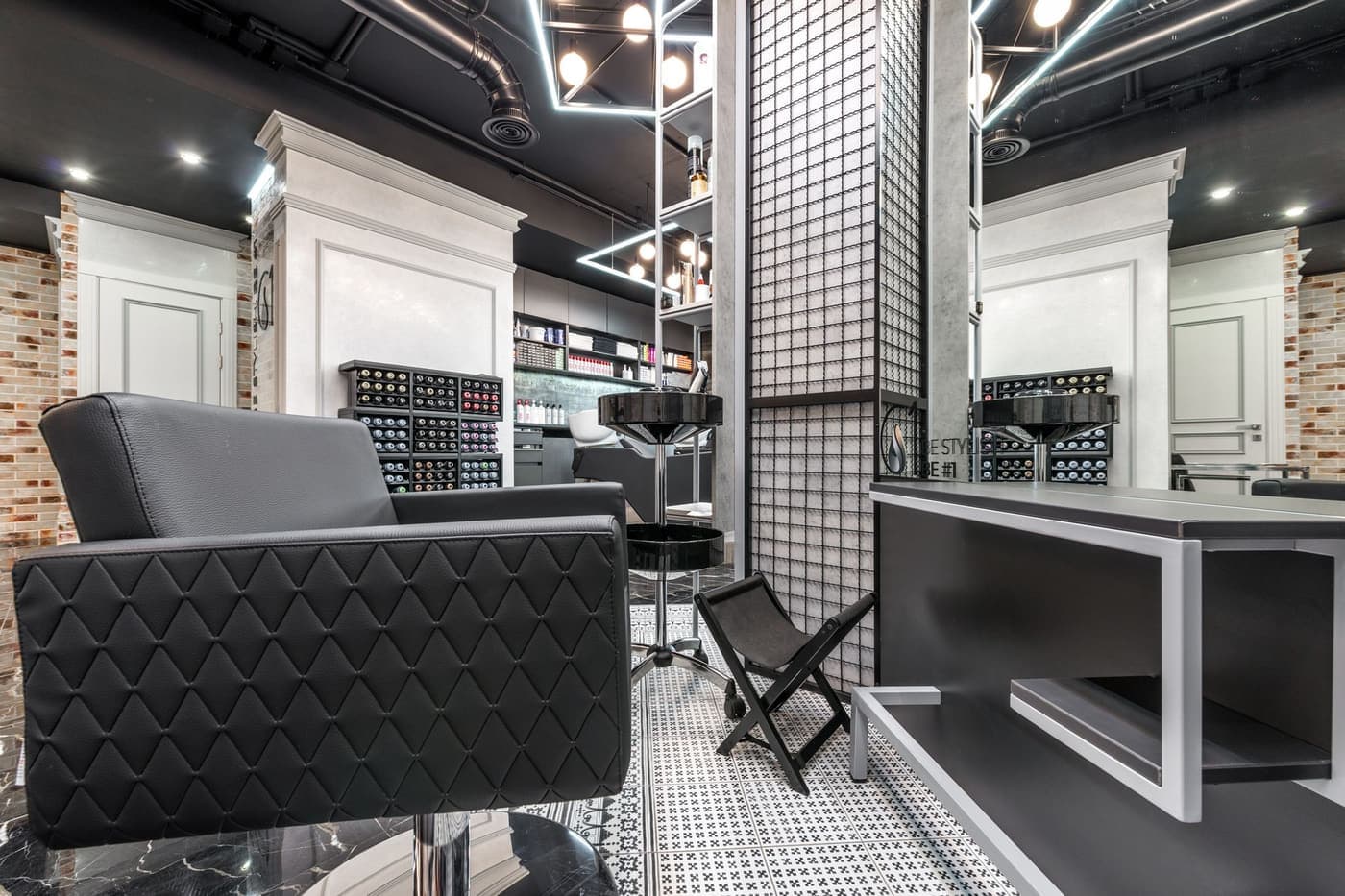
People judge a salon by its photos before they walk in. Aim for at least a dozen good ones, and add more often:
- Outside: the front of the building and the street, so people can find the door
- Inside: the front desk, the chairs, the treatment rooms. Make it feel warm.
- Your team: friendly faces build trust
- Your work: real results, in good light
Use your own photos, not stock pictures. Ask clients before you show their faces. Keep your logo and cover photo up to date.
A phone is fine. Wipe the lens, use daylight, and tidy up first.
Step 7: Get reviews, and answer every one
Reviews are a big part of how well known you are. Most people read them before they book.
How to ask the right way:
- Ask in person, right after a good visit: "If you enjoyed today, a quick Google review would really help us."
- Make it easy. Google lets you share a direct link to your review page. Put it in your follow-up message. Put it on a small QR code at the front desk or the mirror.
What Google does not allow:
- Giving something back for a review, like a discount or a free product
- Asking only your happiest clients (this is often called "review gating")
- Buying reviews or writing your own
If you break these rules, Google can remove your reviews and shut down your profile. It is not worth the risk. Ask everyone, and let the reviews be honest.
Answer every review, good and bad:
- Good ones: thank the person by name and mention one thing they said.
- Bad ones: stay calm and polite. Say sorry, offer to fix it, and move the details to a private chat. Remember that future clients read your reply too. A kind answer to an angry review can win more trust than five easy compliments.
Step 8: Keep it fresh
A profile that looks left behind makes people wonder if you are still open. Spend ten minutes a month on it:
- Add new photos of recent work
- Share updates about offers, events or new services, if your profile has this option
- Fill in the extra details that fit you, like wheelchair access, parking, ways to pay and languages you speak
- Look at your numbers. Google shows how many people called, asked for directions or visited your website. See what is working.
- Search for your own business the way a customer would. Check that the hours, phone number and photos are right. Look for double listings or changes you did not make.
Bonus: use Google Maps to check out the competition
Google Maps also helps you understand your market:
- Search for your service the way a customer would, like "nail salon near me". See who shows up first.
- Open the top results. Compare their photos, reviews, services and booking links with yours.
- Notice what they do well, and what you can do better.
You are not trying to copy them. You are looking for gaps that you can fill.
Your one-hour checklist
- Claim your profile and add a backup owner
- Pick your main category and a few extra ones
- Check your name, address, phone and website everywhere
- Set your opening hours, including holidays
- Add every service with a price
- Add your online booking link and test it
- Upload at least 12 real photos
- Print a QR code for your review link
- Answer every review you already have
- Put a 10-minute reminder in your calendar once a month
Do these ten things and you will be ahead of most local businesses. More of the people who are already searching for you will find you, trust you and book.